
Getting started
Listbase stores information in lists. Each thing inside a list is called an item. A list can have different fields, such as a title, date, number or choice.
For example, you could make a Books list. Each book would be an item, with fields for its title, author and rating.
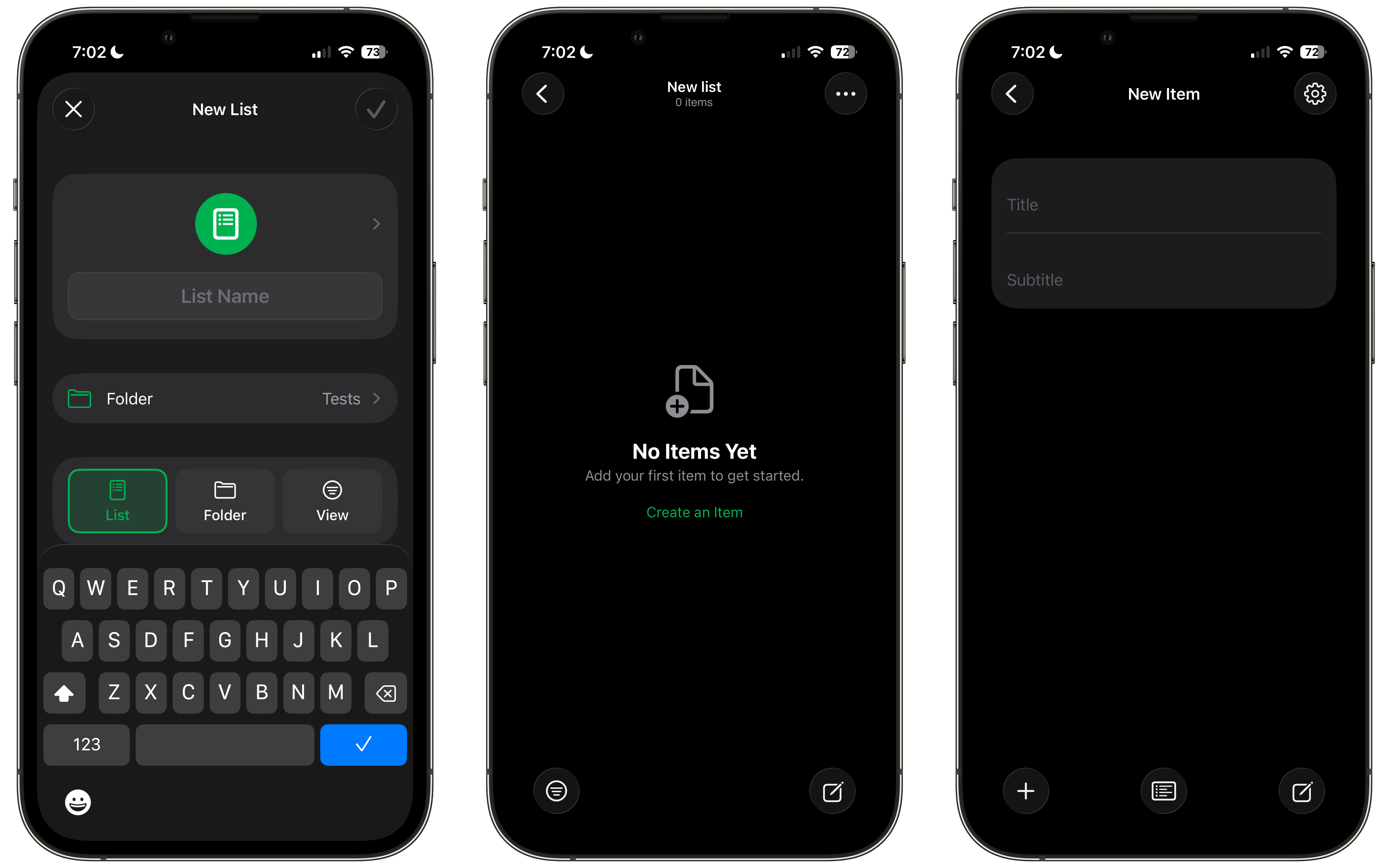
Create your first list
- Open Listbase and tap + on the Lists screen.
- Choose List.
- Enter a name and tap the tick to save.
- Open the list and tap + to add your first item.
You can start with a simple list and add more fields later.
Folders
Use folders to keep related lists and views together. You can also put a folder inside another folder.
Create a folder
- On the Lists screen, tap +.
- Choose Folder and enter a name.
- To put it inside another folder, choose a parent folder.
- Tap the tick to save.
Touch and hold a folder to edit, export or delete it. You can also change the order of folders. To protect a folder and its contents, open the folder’s settings and turn on Authentication.
Lists
A list holds items about one subject, such as books, customers or jobs around the house.
Change a list
- Open the list and open its List Settings.
- Change its name or folder, or choose a colour, icon and shape.
- Open Fields to choose what information each item can hold.
- Use Sort to change the item order, or List Style to change how items appear.
- Tap the tick to save your changes.
You can choose which fields appear as an item’s title, subtitle and icon. Touch and hold a list to favourite, duplicate, export or delete it. Deleted lists go to Deleted Items.
Get reminders for items
If your list has a Date field, you can turn on Enable Notifications in its settings. Choose the Date field and either a Time field or a custom time. Allow notifications for Listbase in your device settings. Listbase schedules notifications for items with a future date and a valid time.
Fields
Fields are the pieces of information you keep for each item. In a Books list, you might have fields for Title, Author, Finished and Rating.
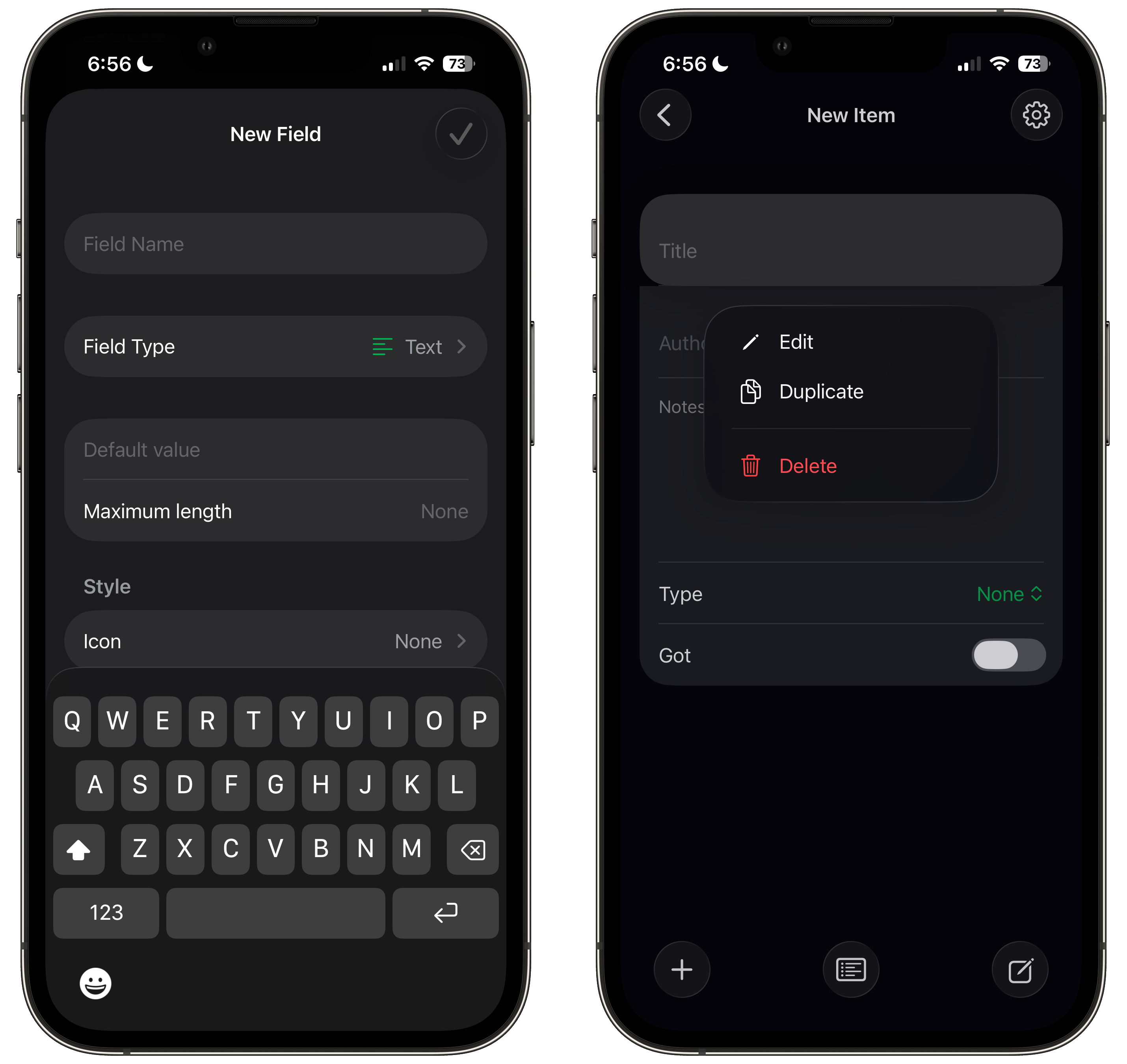
Add a field
- Open the list and go to List Settings → Fields.
- Tap +.
- Enter a field name and choose its type.
- Choose any options or a default value, then tap the tick to save.
Choose a field type
- Text for a short answer; Long text for notes.
- Number for an amount, price or rating.
- Date for a calendar date; Time for a time of day.
- Yes/No for a simple on-or-off answer.
- Choice for one option from a list you set up.
- Colour or Icon for a visual marker.
- Multiple Entries for several separate text answers.
- Linked List to select one or more items from another list or saved view.
- Formula to calculate a value automatically.
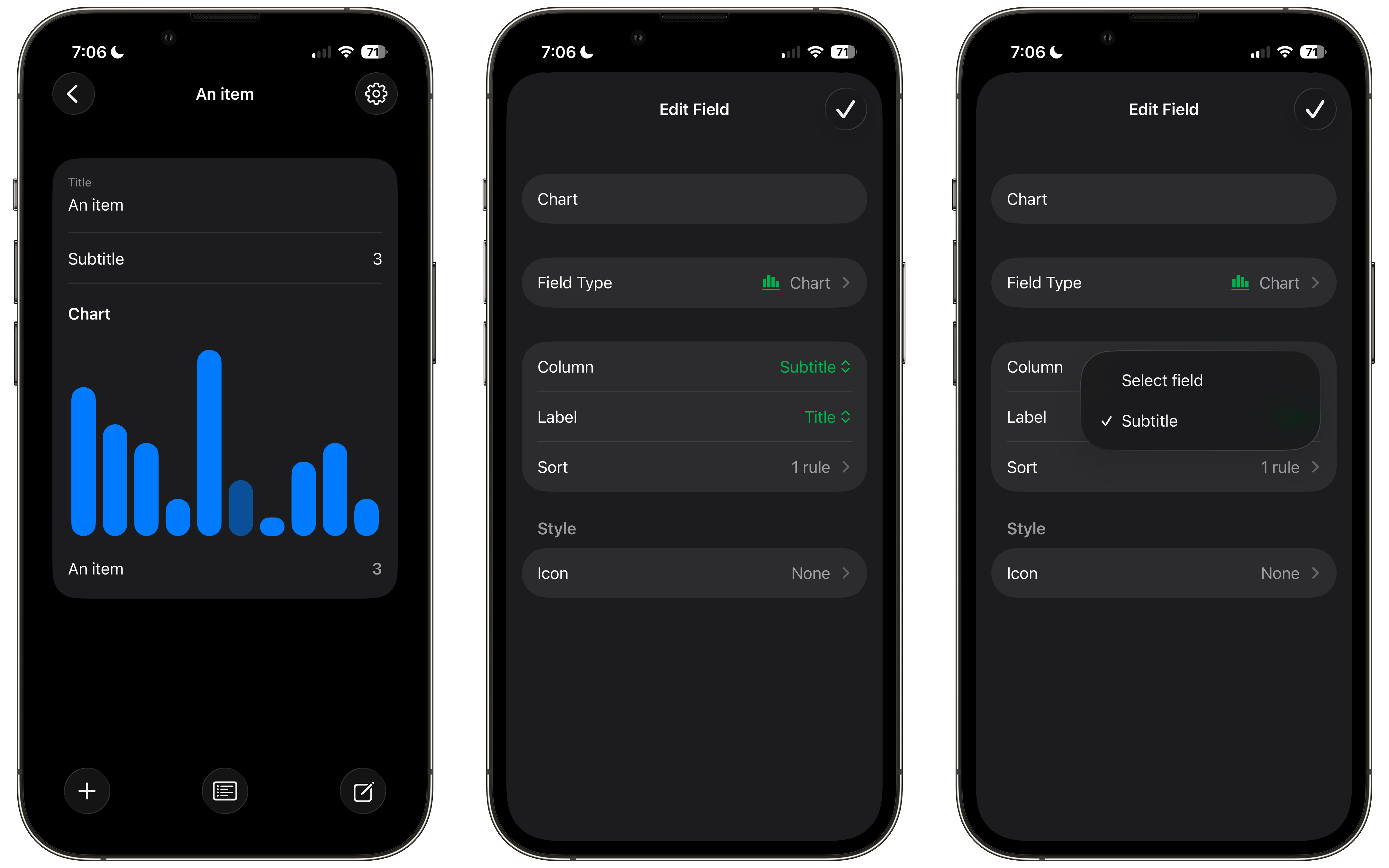
- Chart to show a bar chart of numeric values in the list.
- System for a value Listbase supplies, such as Date Created, Date Modified, Today’s Date, ID or Row Number.
Some fields have extra options. For example, you can set a minimum and maximum for a Number field, a date range for a Date field, or colours and icons for Choice options. Number fields can also display currencies or percentages.
Formulas and charts
A Formula field can use other fields, a value you enter or another formula. For example, it can multiply Quantity by Price to calculate a Total. See the formula guide for every formula and how to use it.
For a Chart field, choose a numeric Column, a Label field and, if you want, a sort order.
Items
An item is one entry in a list. In a Books list, each book is an item.
Add or edit an item
- Open a list and tap +.
- Fill in the fields you need.
- Go back when you have finished. Your changes save automatically.
Tap an item to edit it. Touch and hold it to duplicate or delete it. Use Search in the list to find items by their values.
Views
A view shows items from one or more lists. It does not move or change the original items. For example, a “Things to do” view could show only tasks that are not done.
Create a view
- On the Lists screen, tap + and choose View.
- Enter a name and tap the tick to save.
- Open the new view’s settings and choose its Source Lists. These are the lists it will show items from.
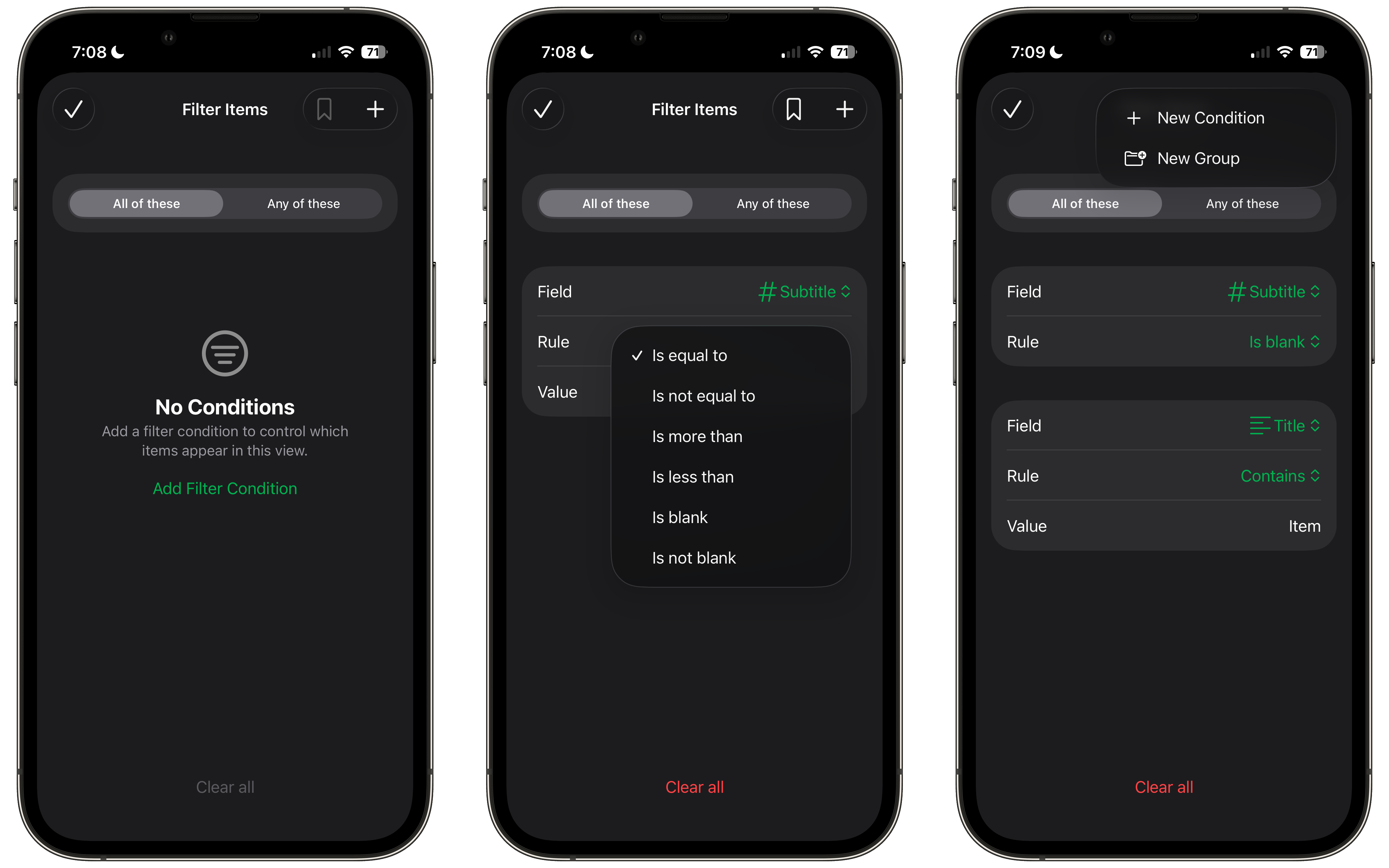
- Open Filter. Tap + → New Condition and choose a field, a rule and, if needed, a value to compare.
- Tap the tick to save the view.
You can add more conditions or use New Group for more detailed rules. All of these means every rule must match; Any of these means at least one must match. You can also sort the results.
When you add an item from a view that uses several lists, Listbase asks which list to put it in. Deleting a view deletes the view, not the items in its source lists.
Quick filters
While looking at a list or view, use its filter control to narrow the items on screen. Tap Clear all to remove those quick filters, or Save as View to keep them. Saving from a view keeps its original filters as well as your quick filters.
See Filters for the available rules and Grouping for combining them.
Sorting
Sorting changes the order in which items appear. It does not change their values.
- Open a list or view’s settings and tap Sort.
- Tap + and choose a field.
- Choose a direction, such as A–Z, Ascending or New to Old.
- Add another sort rule if you need one. The first rule is used first.
Security
Turn on Authentication in a folder, list or view’s settings to protect it with Face ID, Touch ID or your device passcode. A protected folder also protects the content inside it. Protected content locks again when Listbase goes into the background.
iCloud, import and backup
Check iCloud sync
Open Settings and look at the iCloud row. It shows the sync status and when Listbase last updated. Tap it to see the activity log.
Import a CSV file
- Open Settings → Import/Export.
- Under Import, tap CSV and choose a file.
The first row supplies the field names. Each later row becomes an item.
Back up your data
Open Settings → Import/Export. Under Backup, tap Backup and choose where to save the Listbase.json file.
Restore a backup
In the same place, tap Restore and select a compatible Listbase backup. Choose Merge to keep your current personal data and add or update data from the backup. Choose Replace to remove your current personal data before restoring. Replace does not affect shared lists.
Reuse a list’s fields
Touch and hold a list and export it as a Template. A template keeps the list’s fields and structure, but not its items. To use one, open Settings → Import/Export and choose Template under Import.
You can also export a list or view as CSV, or export a list, view or folder as backup data.
Deleted Items
Open Settings → Deleted Items to find deleted lists and items.
Open a list to see its deleted items. Tap an item to restore it, or swipe it to delete it permanently. You can also restore a deleted list. Permanent deletion cannot be undone. A deleted view cannot be restored from Deleted Items.
Listbase Pro
The free version allows up to 10 active lists, 100 active items in each list and 10 saved views. Listbase Pro removes these limits and lets you share lists with other iCloud users. It is a one-time purchase, not a subscription.
Open Settings → Upgrade to see the purchase option. If you already bought Pro with the same eligible Apple Account, choose Restore Purchase. See Listbase Pro for more about sharing and upgrading.